Pictech
Pictech − Startup, Saas & Agency Laravel Website CMS
- Created: 08/31/2025
- Author: ThemeCorn
- Version: 1.0
Pictech is a Laravel-based multi-purpose Website CMS. Design for SaaS, agencies, startups, and eco‑focused initiatives. It ships with a modern, high‑performance frontend, an intuitive admin dashboard, and flexible customization so users can configure content, branding, sections, and integrations without touching code.
Login Credential
Before installing Pictech, please make sure your hosting/server environment meets the following requirements to ensure smooth installation and performance:
Server Requirements
- Web Server: Apache (with
mod_rewrite enabled) or Nginx
Required to serve Laravel applications and handle clean URLs (pretty links).
- PHP Version: PHP 8.2 or higher (8.3 recommended)
Laravel 12 requires PHP 8.2+. Running the latest stable PHP is strongly recommended for security and performance.
- PHP Extensions: OpenSSL, PDO, Mbstring, XML, Ctype, JSON, BCMath, Fileinfo, Tokenizer, Curl
These extensions are required for core Laravel features such as encryption, database access, file handling, and API requests.
- Database: MySQL 8+ or MariaDB 10.4+
Pictech requires a modern relational database for storing application and user data. PostgreSQL may also be compatible.
- Composer: Version 2.6+
Composer is required to install and manage Laravel dependencies.
- Node.js & npm: Node.js 20 LTS and npm 10+
Required to compile and build frontend assets using Laravel Vite.
- PHP Limits (recommended):
- upload_max_filesize = 64M
Controls maximum file upload size (e.g., media, images).
- post_max_size = 128M
Should be larger than upload_max_filesize to handle form submissions.
- memory_limit = 512M
Defines how much memory PHP scripts may consume; higher is safer for large tasks.
- max_execution_time = 120
Sets maximum time a script can run before timing out.
- max_input_vars = 2000
Prevents truncation of large forms with many fields.
After purchasing and downloading the script package, unzip it. Inside the Pictech Main folder, you will find a file named pictech.zip. This is the main file you need to upload and install in your Laravel project. Below are two methods for installing the Pictech Laravel script:
1. Install Directly in Laravel Project
- Step 1: Log in to your hosting control panel (cPanel/Plesk) or access your server via SSH.
- Step 2: Navigate to the root directory of your Laravel project.
- Step 3: Upload the file pictech.zip to this directory.
- Step 4: Extract the zip file. All script files will be extracted.
- Step 5: Create a database using your hosting panel (cPanel/Plesk) and keep the credentials safe.
- Step 6: Visit your website URL to complete the installation process.
- Extra: Run the following commands in terminal/SSH inside your Laravel root directory:
composer install
php artisan migrate
php artisan db:seed
php artisan key:generate
2. Install via FTP/SFTP Client
- Step 1: Connect to your hosting using an FTP/SFTP client (such as FileZilla).
- Step 2: Navigate to your Laravel project root directory on the server.
- Step 3: Upload the unzipped Pictech script files into the project directory.
- Step 4: Ensure the storage and bootstrap/cache directories have proper write permissions.
- Step 5: Run the required Laravel commands (via SSH or hosting terminal):
composer install
php artisan migrate
php artisan db:seed
php artisan key:generate
- Step 6: Configure your .env file with database credentials and reload the site.
Migrate folders and files from zip file pictech.zip with Cpanel.
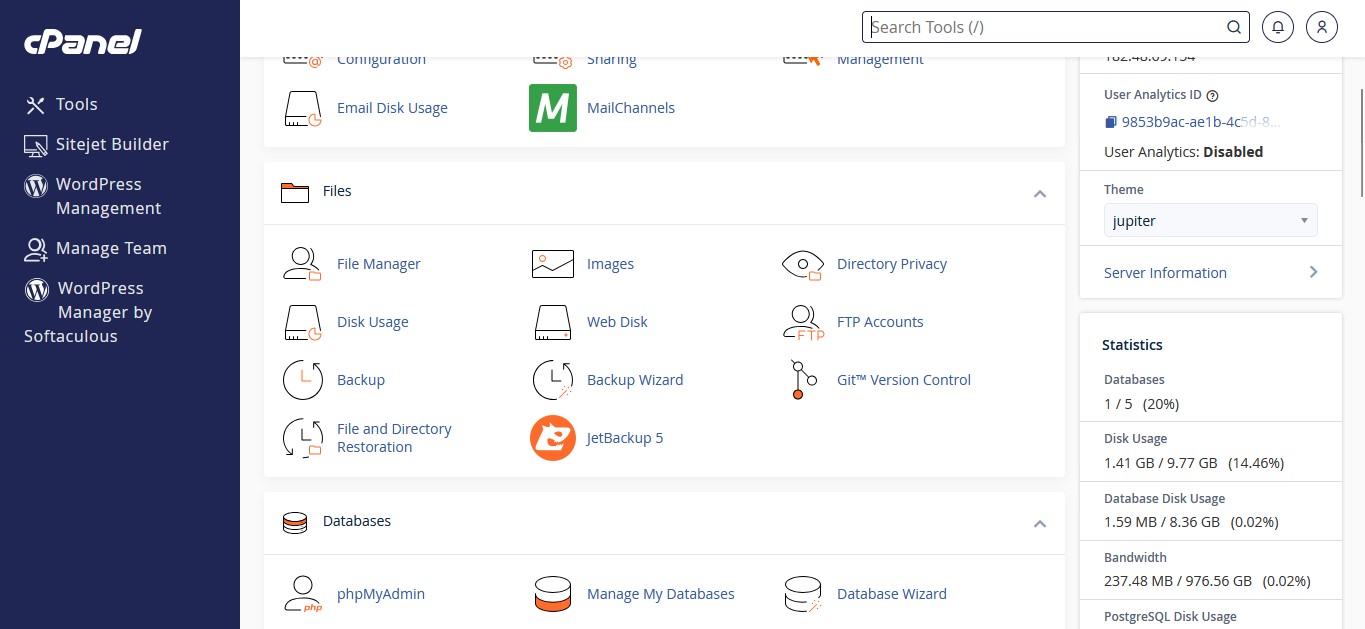
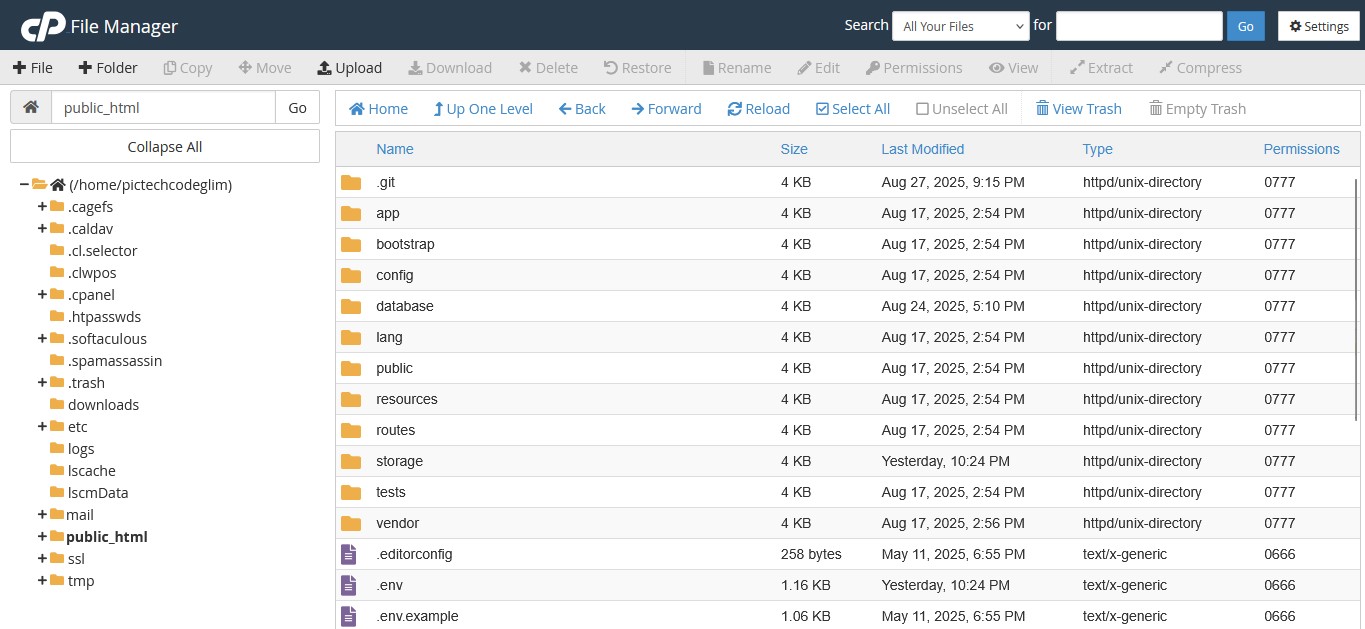
Step: 1 Go to your cpanel dashboard then Dashbaord > File Manager
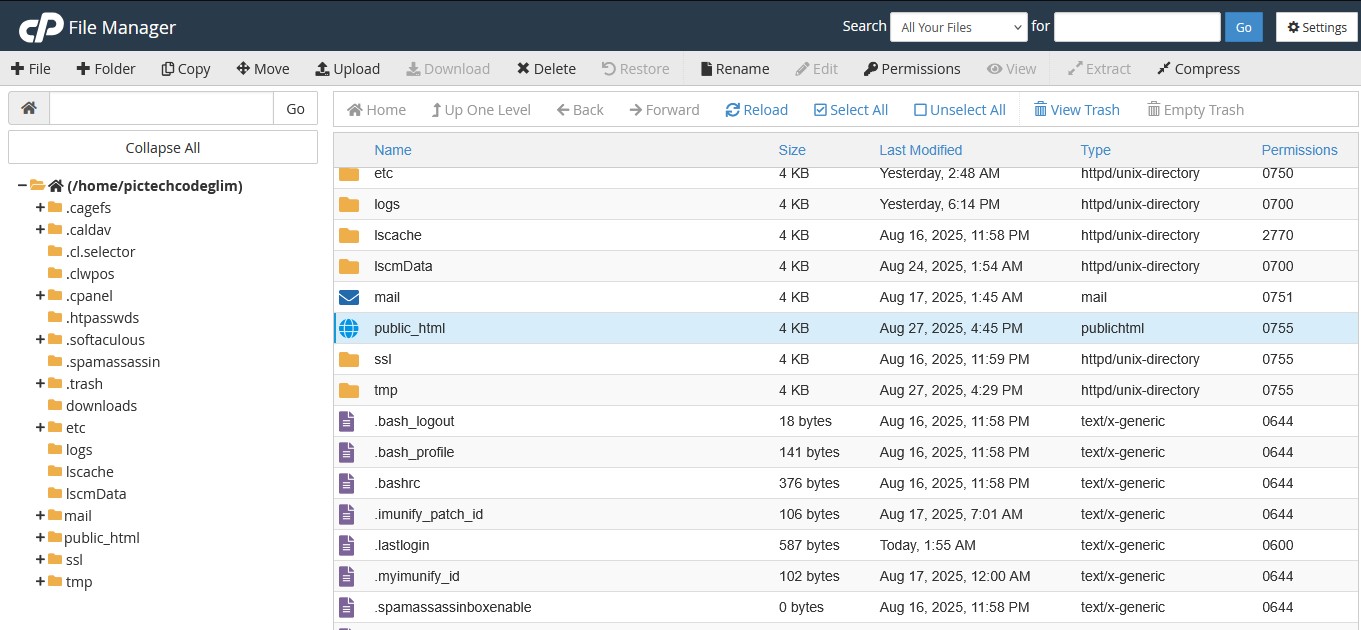
Step: 2 After that go to File Manager > public_html
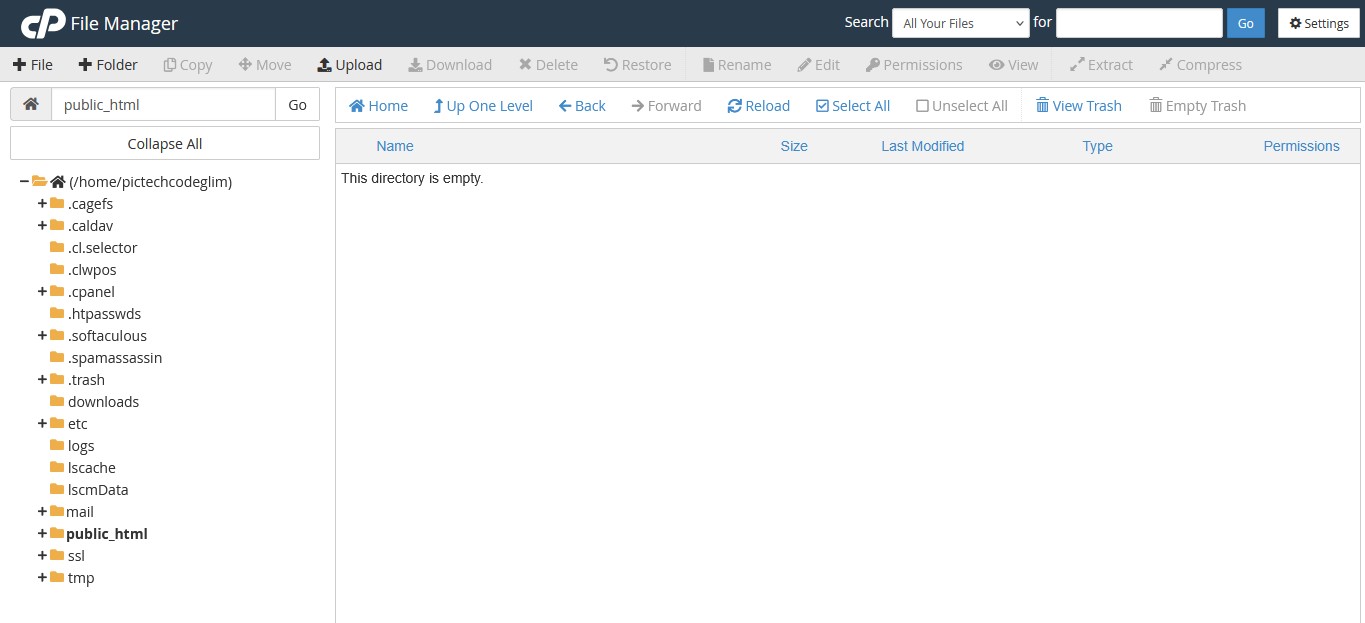
Step: 3 Click on the Upload button form the top menu
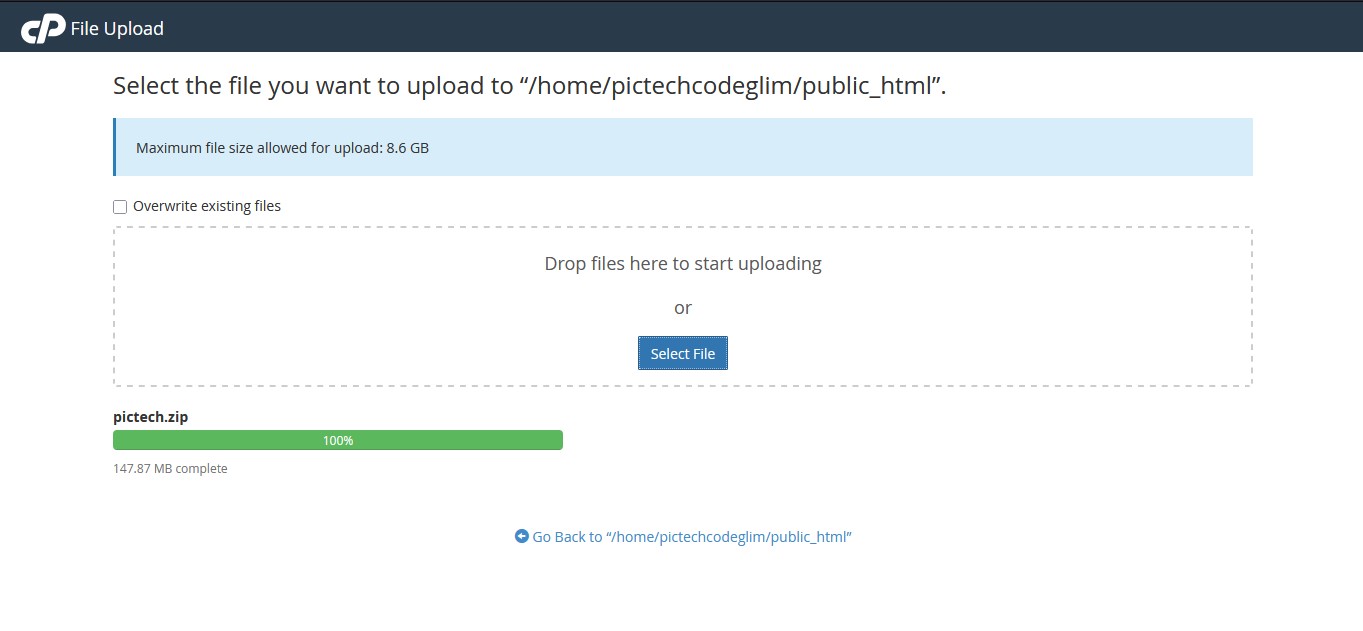
Step: 4 Now upload pictech.zip file. Once the file is successfully uploaded, click on the marked link below.
Step: 5 Extract the pictech.zip file that you uploaded some time ago , Your public_html folder must have all these files and folders
Migrate folders and files from zip file(Pictech) with any FTP program (ie. FileZilla) or the webinterface of your webhost.
Step: 1 Connect to your web server using any FTP program (ie. FileZilla) or the webinterface of your webhost and upload all files and folders which are inside the "Pictech" folder from the .zip file you have downloaded from Codecanyon and put in the public_html folder.
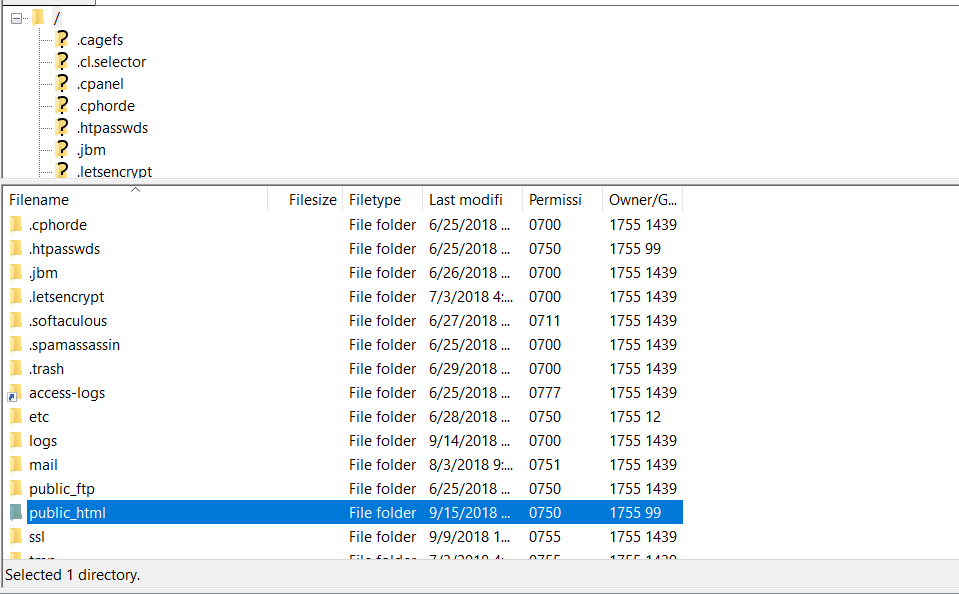
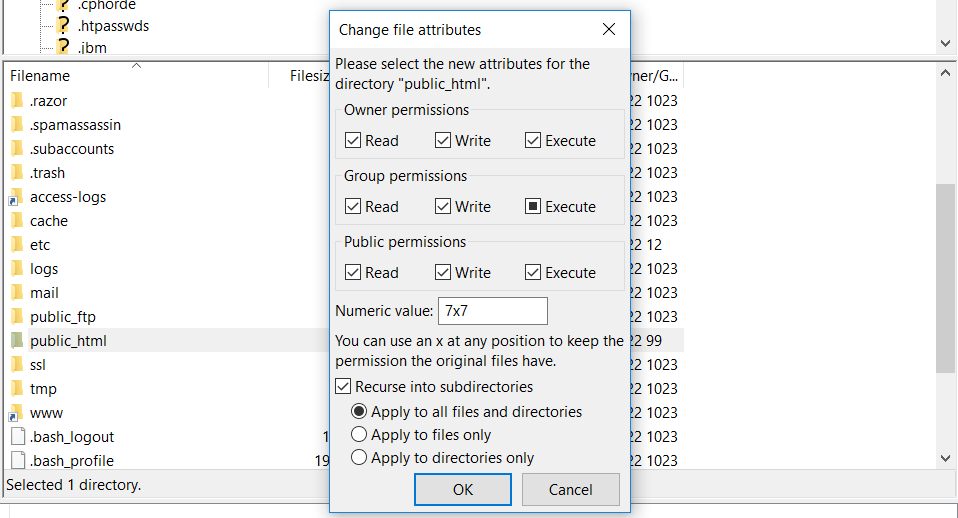
Step: 2 The folder "public_html" and it's subfolders must have write permissions, so just give the folder write permissions (777).
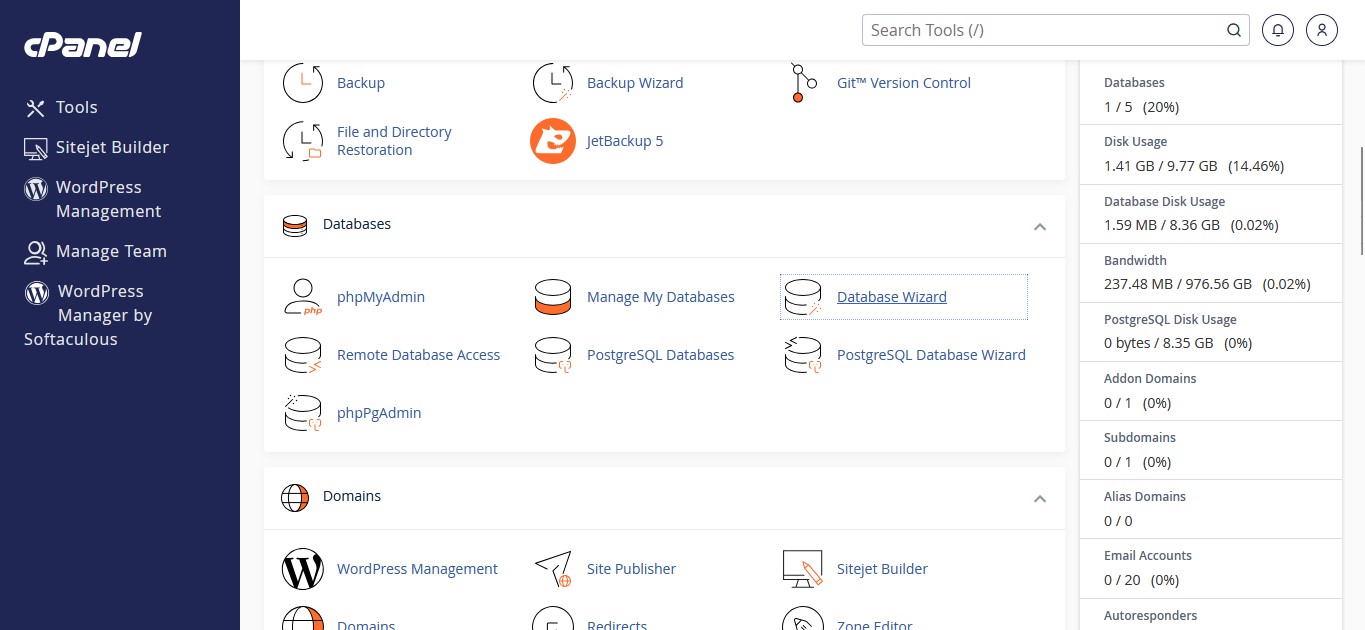
You can easily create a database and user using the MySQL® Database Wizard. Just follow my steps.
Step: 1 Create the database using MySQL® Database Wizard, click on the . MySQL® Database Wizard
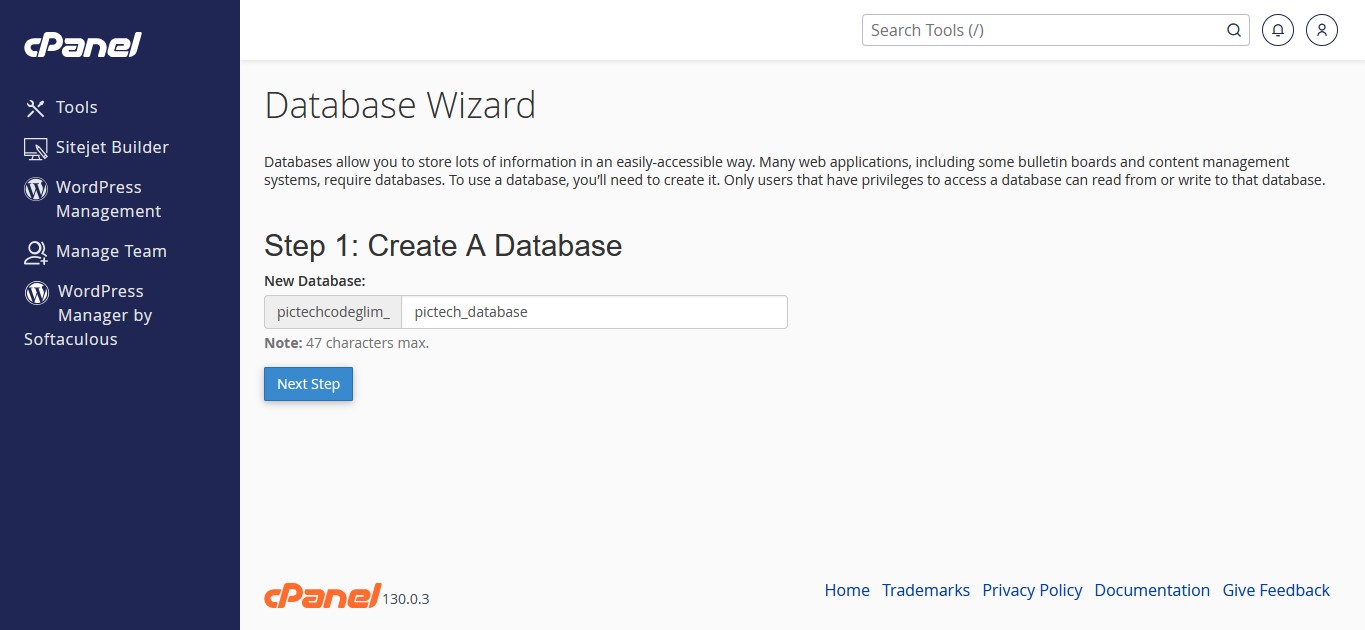
Step: 2 Fill the database name and click on the Next Step button.
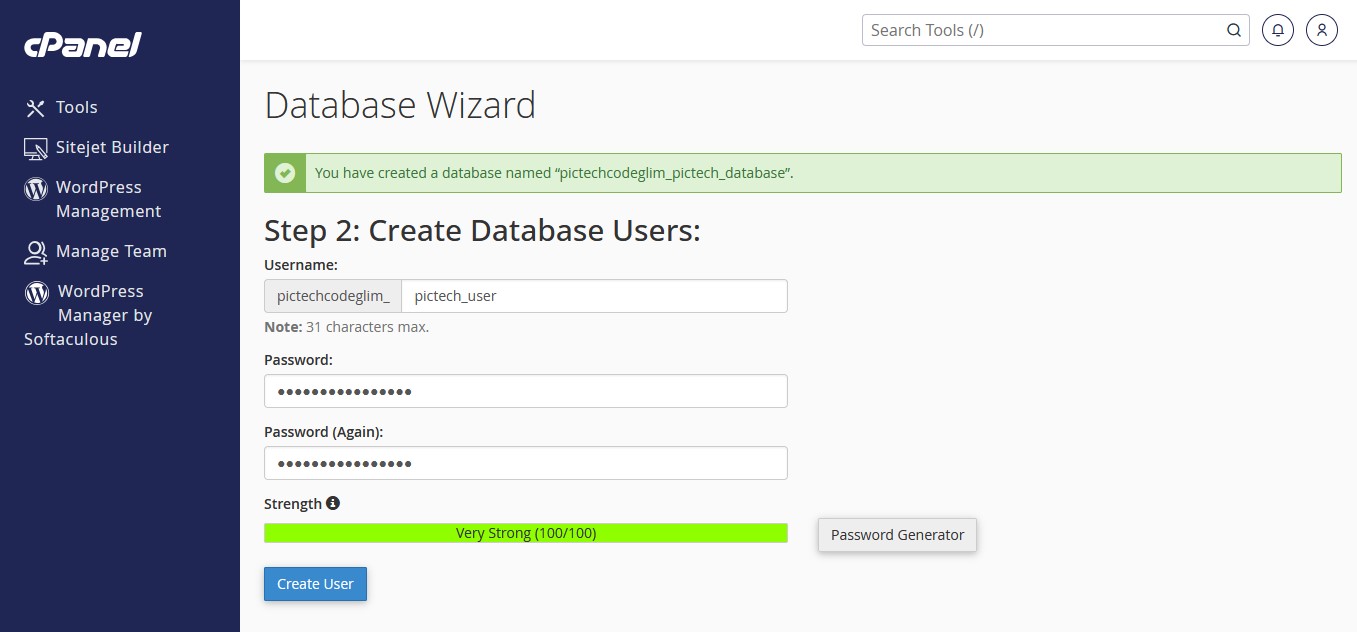
Step: 3 Fill the username and passoword then click on the Create User button
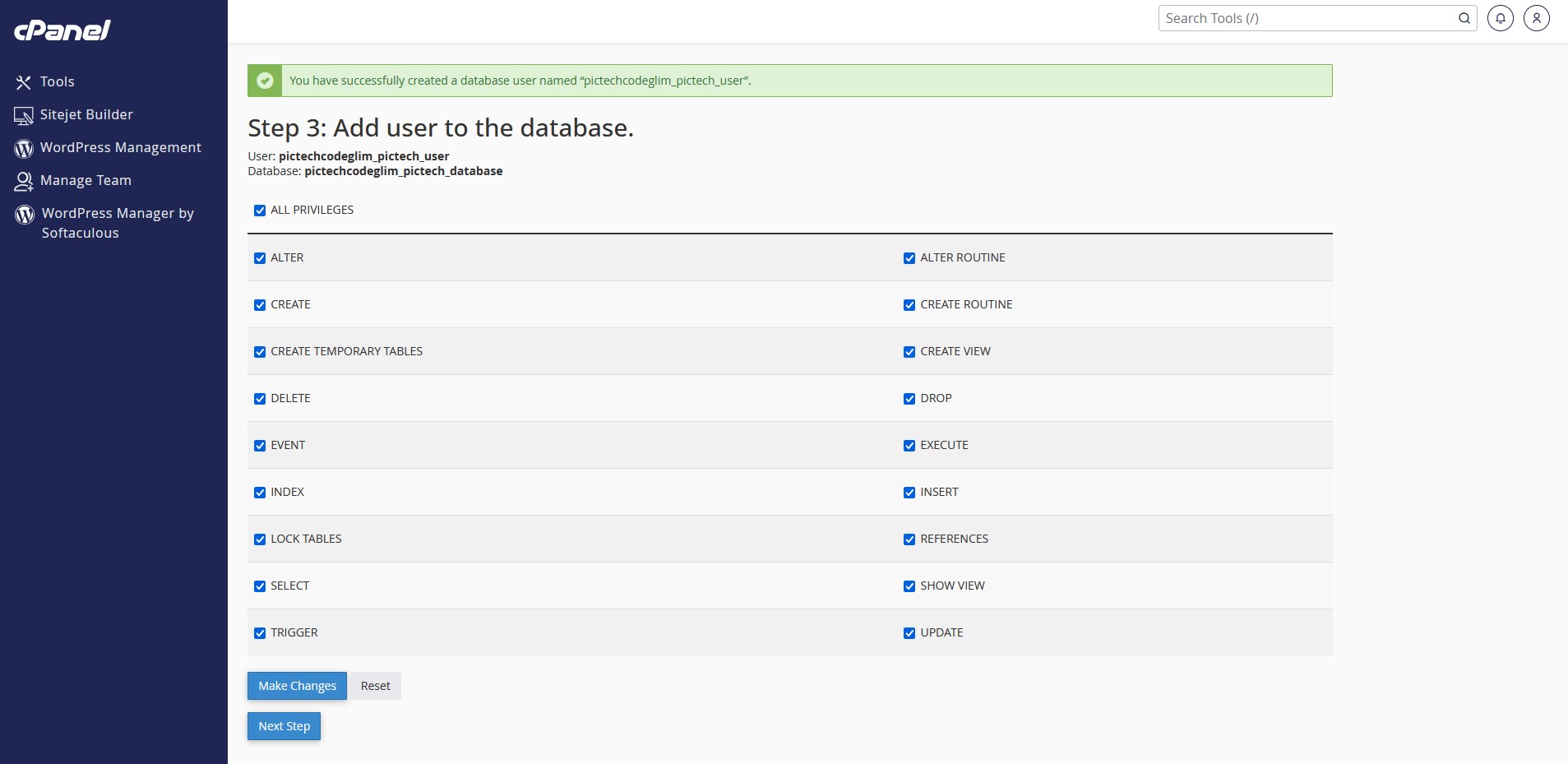
Step: 3 Checked ALL PRIVILEGES and then click on the Next Step button
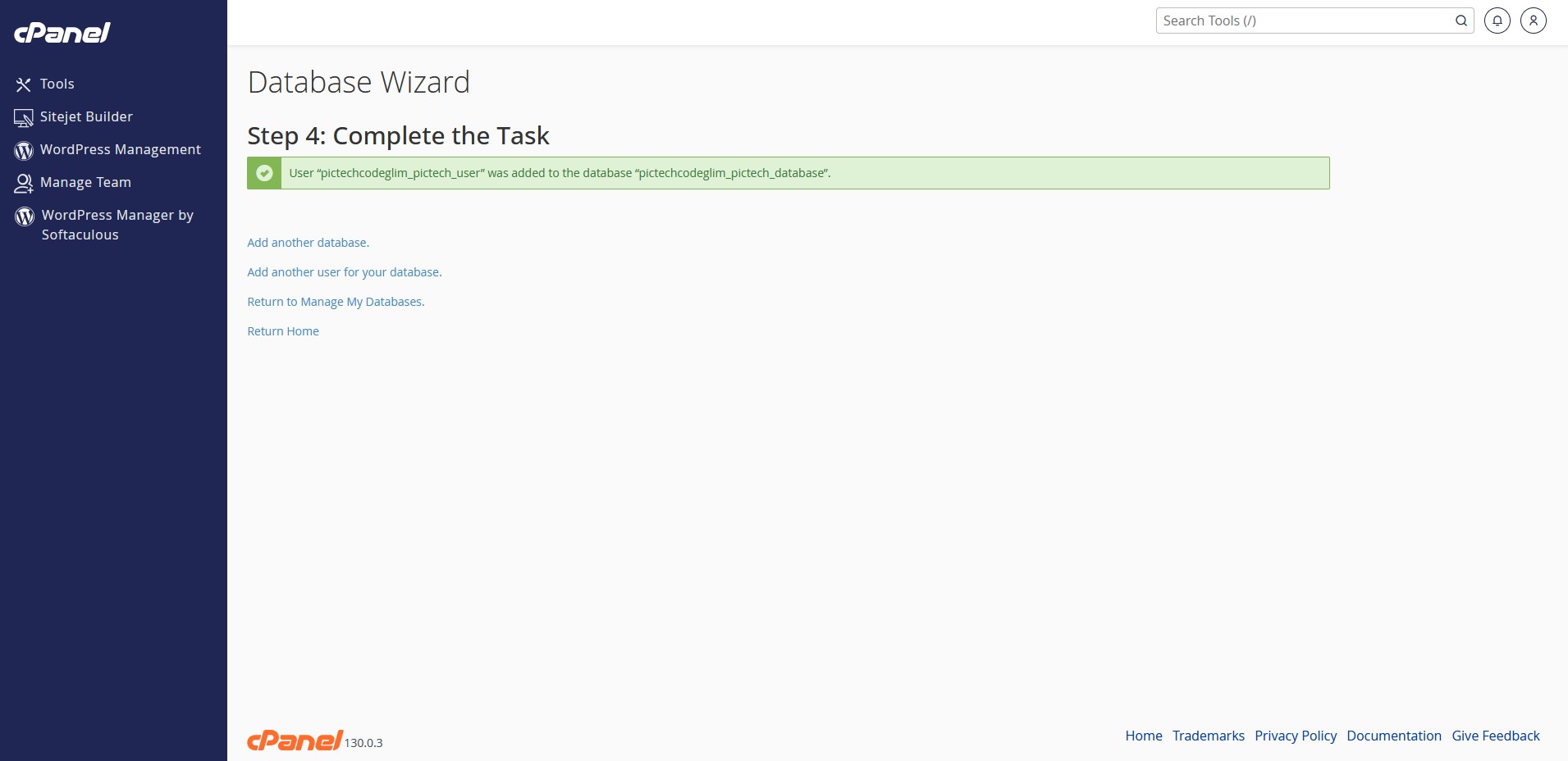
Step: 4 Congratulations! You have successfully configured the database. Please remember the database credentials, as they will be needed when you install the Pictech script.
It’s easy to install Pictech. Just follow these steps, they won’t take much of your time.
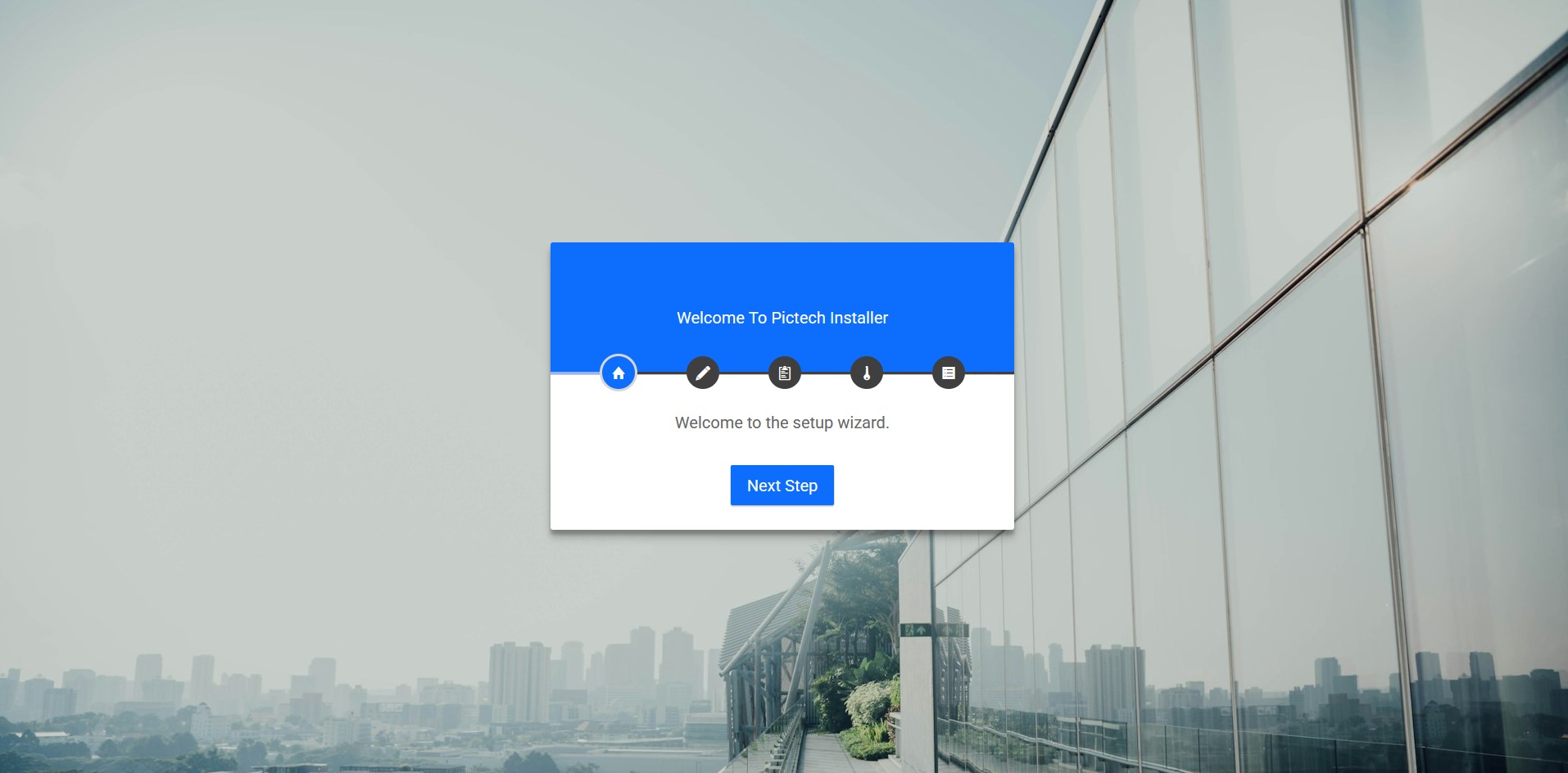
Step 1: Visit Domain (Ex: http://yourwebsite.com.) You will then see an installer widget like the one below, If you already have the database name, username, host, and password, click on the "Next Step"
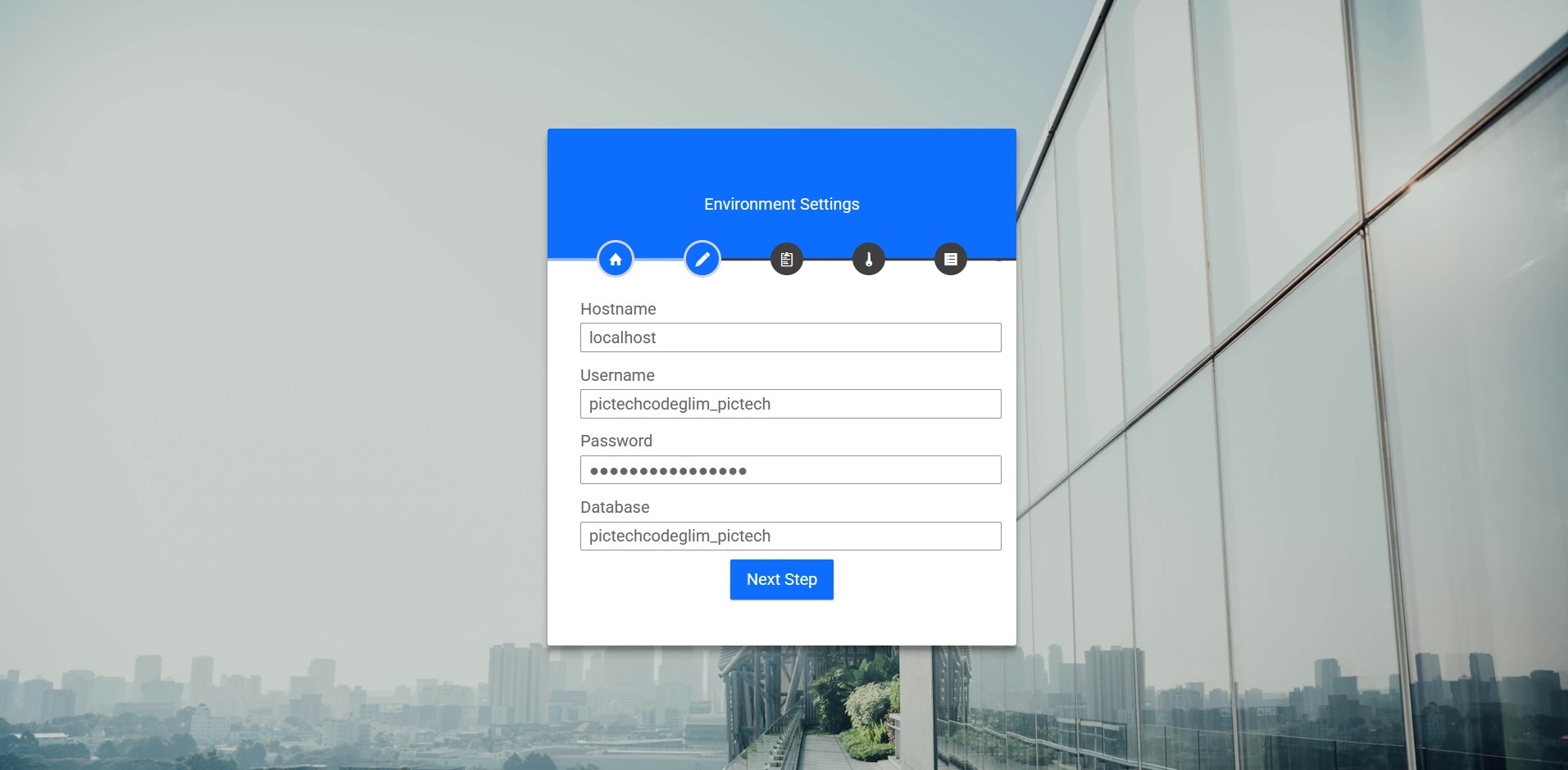
Step 2: Add Hostname[localhost], Database username, Password & database name then If all are correct then click on "Next Step"
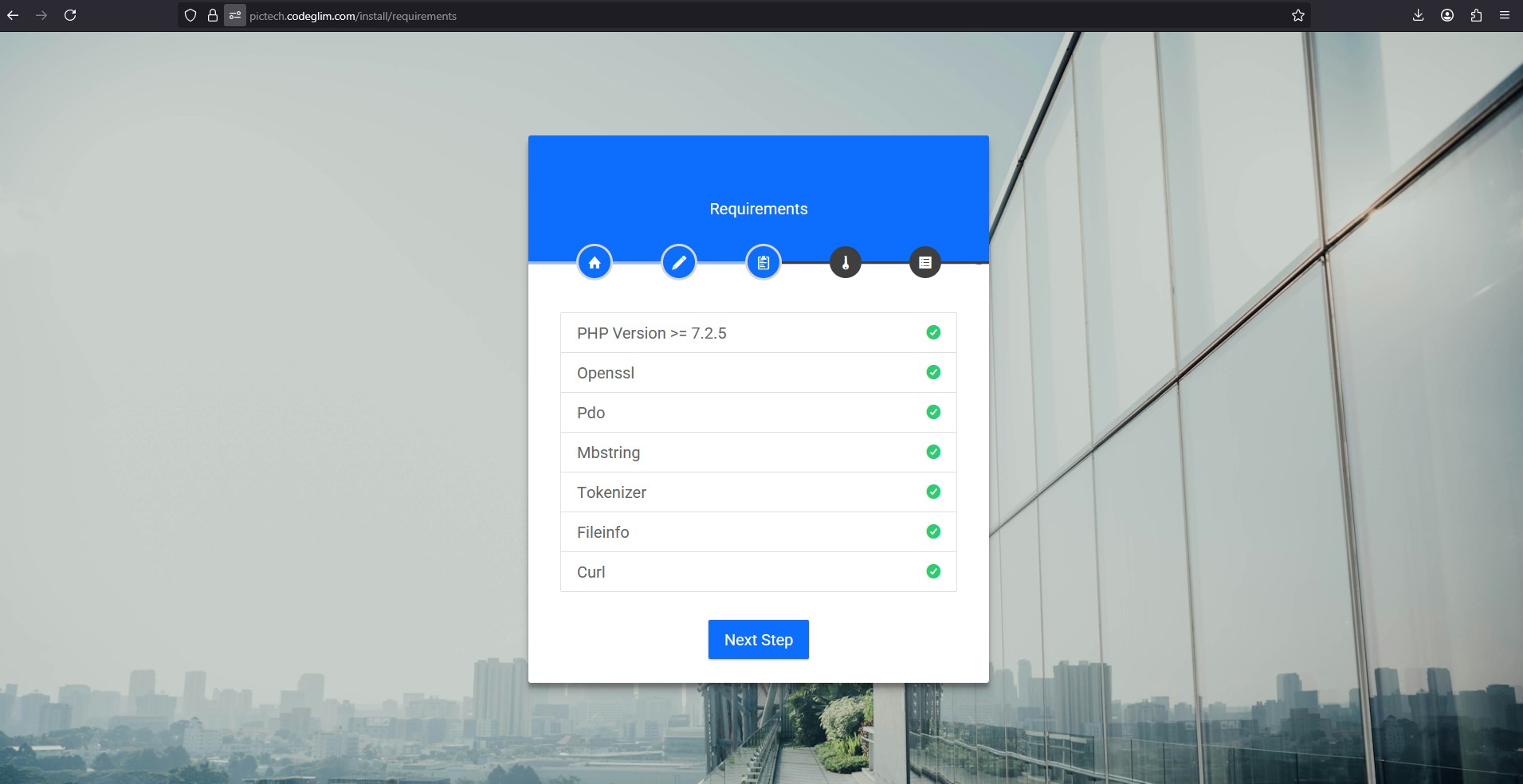
Step 3: In this step, our script will check your PHP version and extensions. If all are activated, the click on "Next Step". otherwise, you need to enable the missing extensions from cPanel or your server.
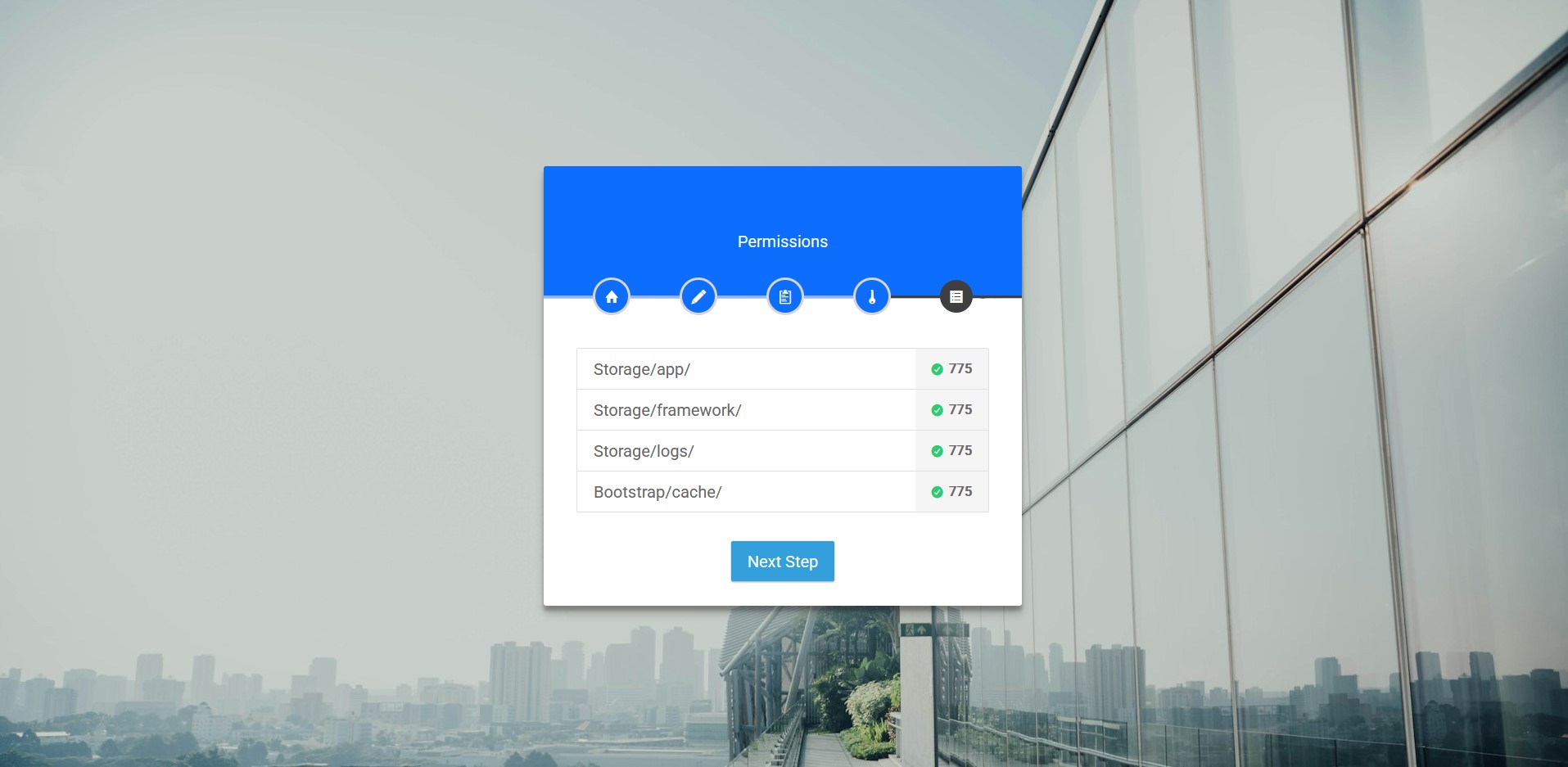
Step 4: In this step, our script will also check your file permissions. If they are set to 775, you can proceed to the "Next Step" Otherwise, please update the permissions to 775.
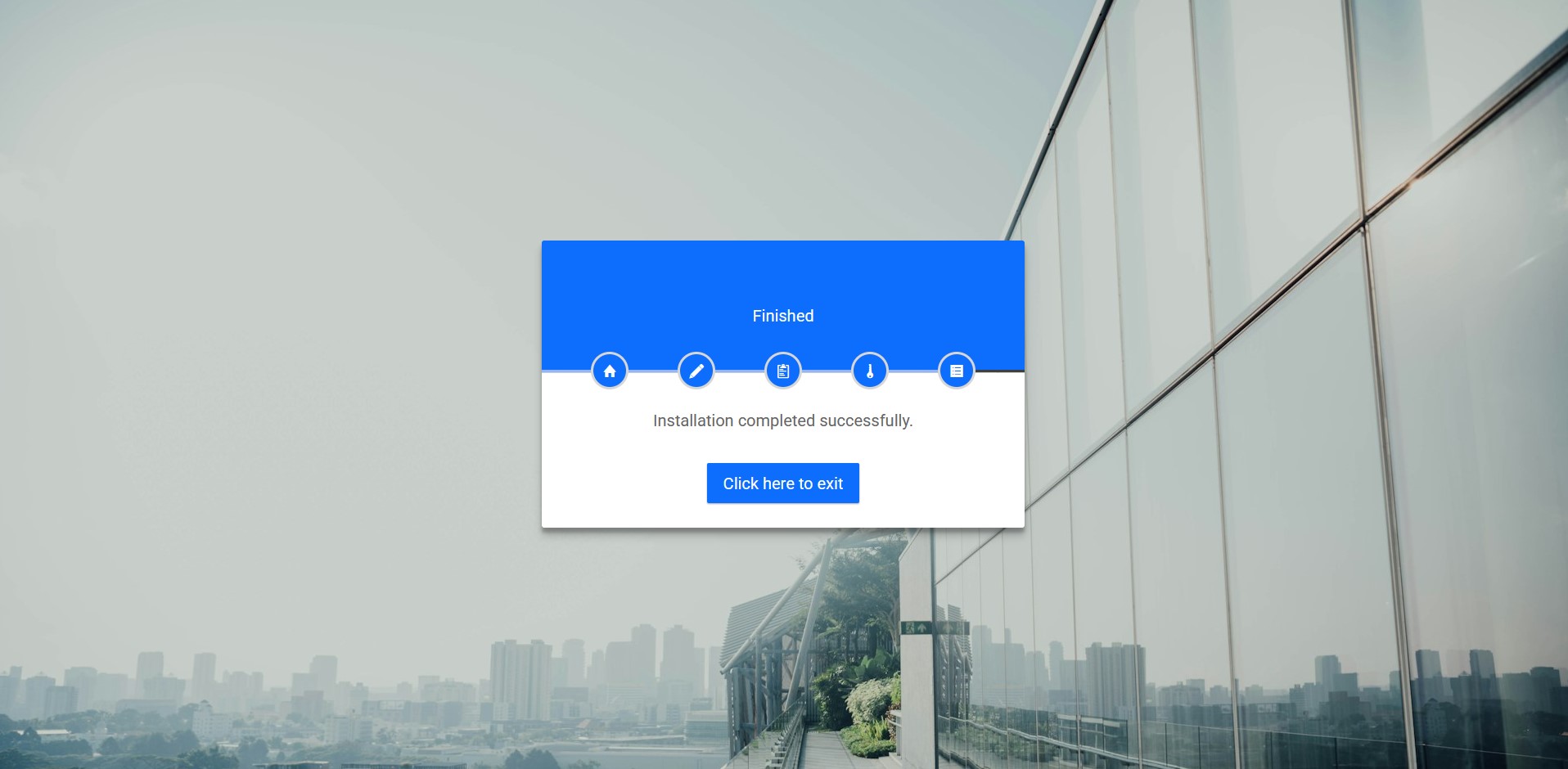
Step: 5 Congratulations 🎉🎉 You have successfully completed the installation process of "Pictech" Laravel Script. Click here to exit. You'll redirect to homepage.
It’s so easy to customize Pictech script. Just follow these steps
Step 1: Log in to the dashboard (e.g., http://yourwebsite.com/admin/login). Enter the admin credentials provided on our product details page or at the top of this welcome overview tab. Once entered, click "Login."

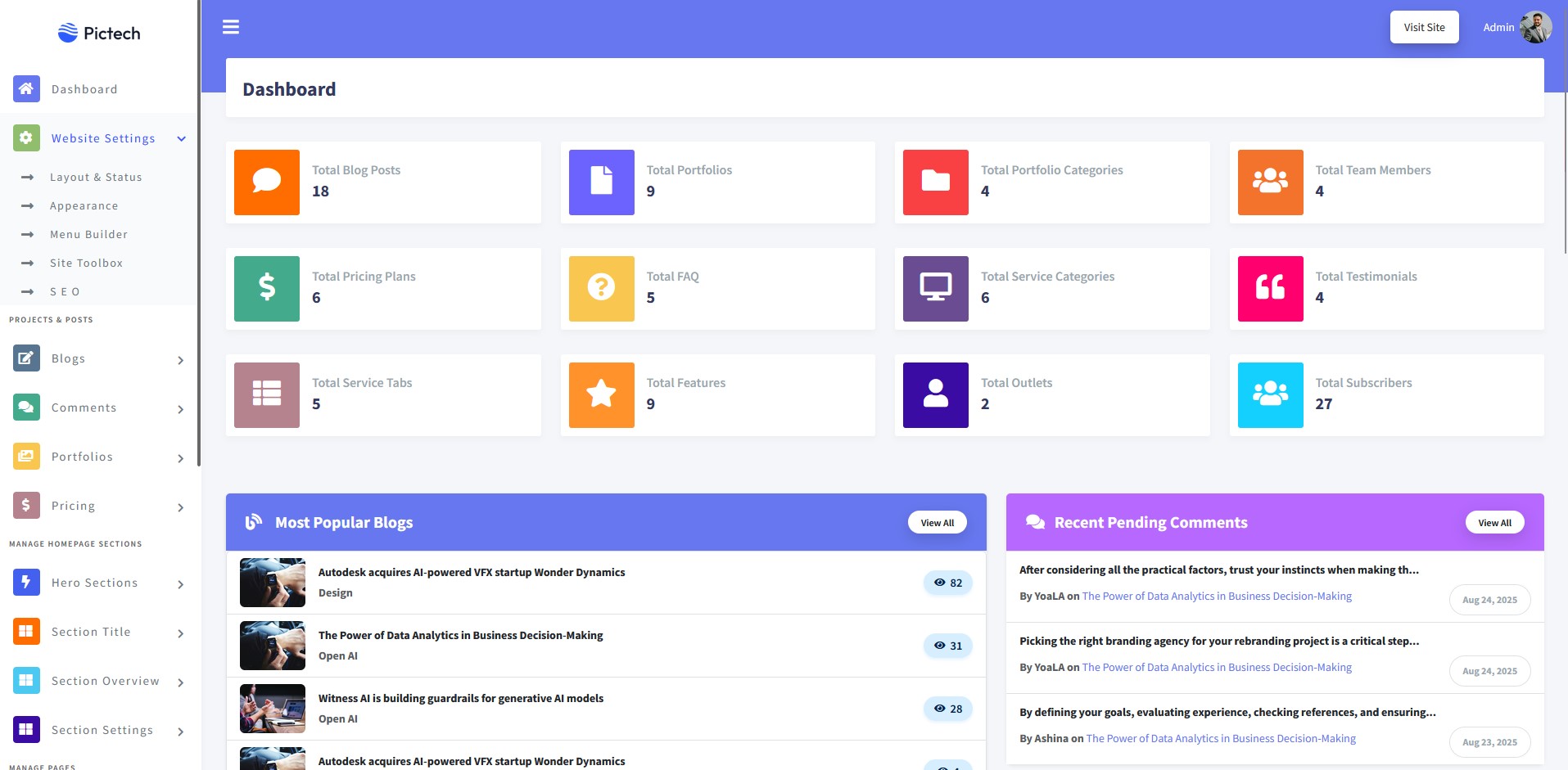
Step 2: This is your main dashboard, where you can customize, add, edit, delete, or update all website details easily.
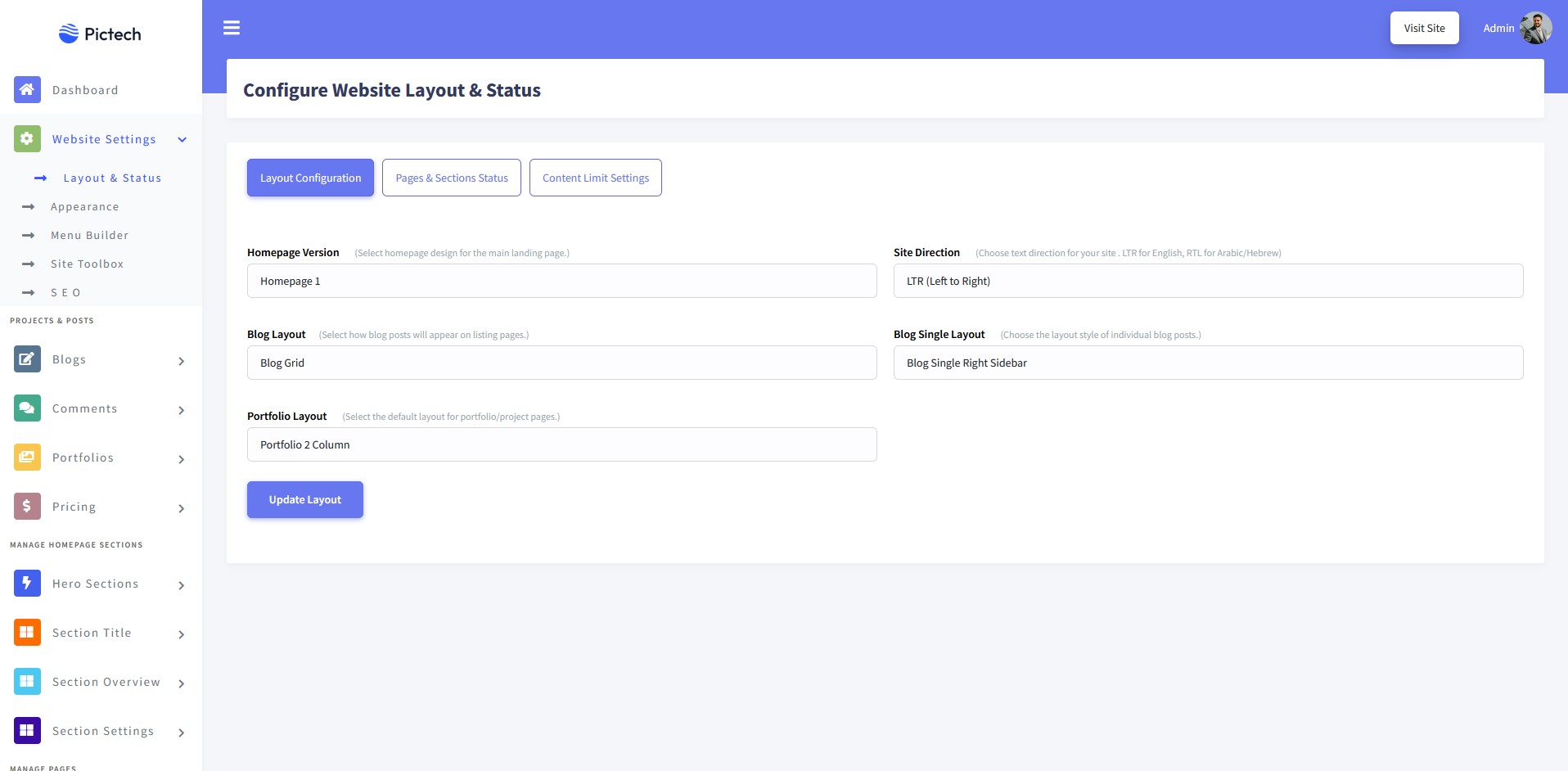
Website Layout Configurations: Go to [Website Settings > Layout & Status]. From here, you can configure the website layout, such as changing the homepage layout, site direction, blog layout, or portfolio layout. Once done, click on "Update Layout."
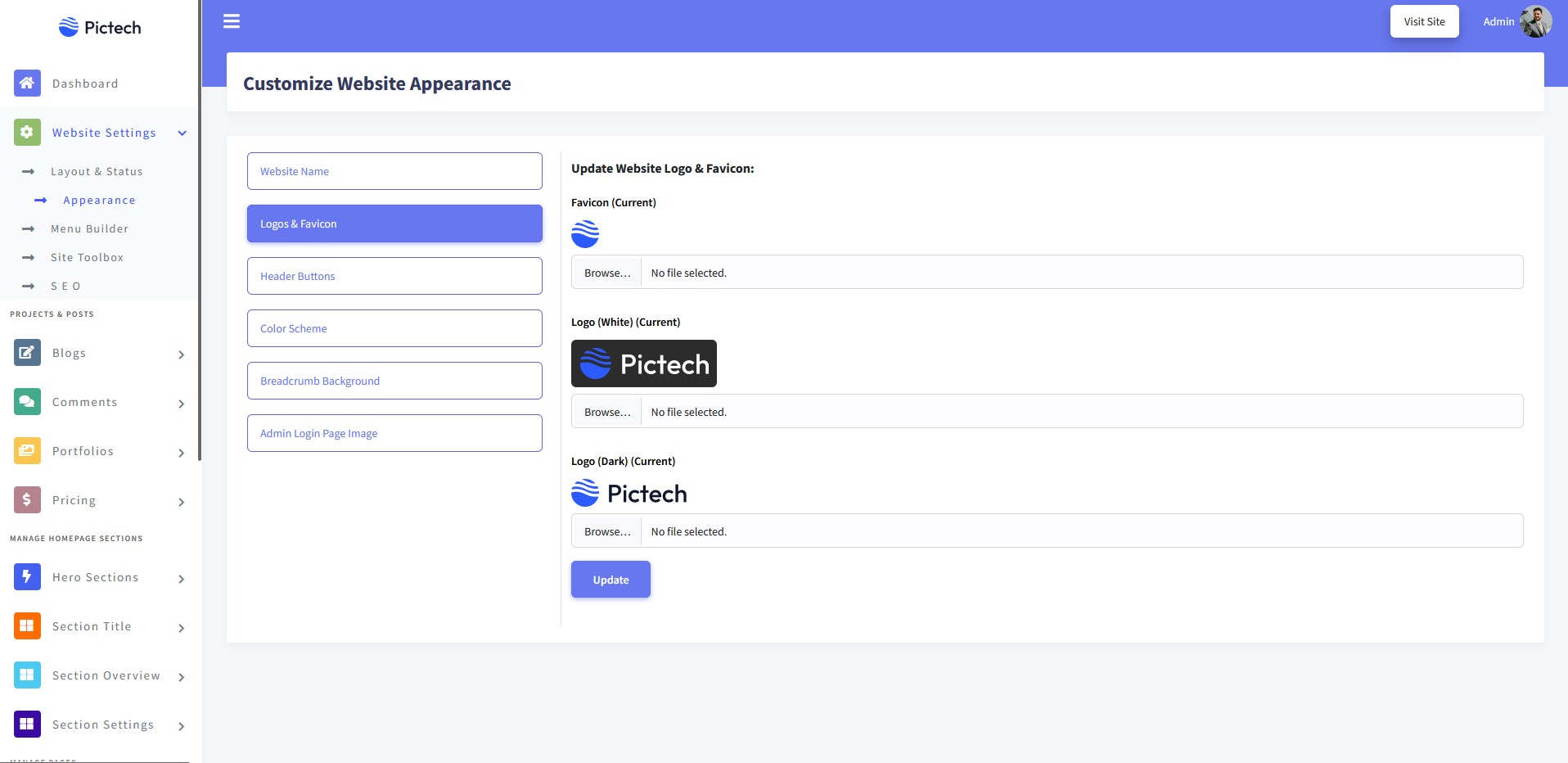
Logo Settings: Go to [Website Settings > Appearance > Logos & Favicon]. From here, you can update the website logo and favicon. After making changes, click "Update."
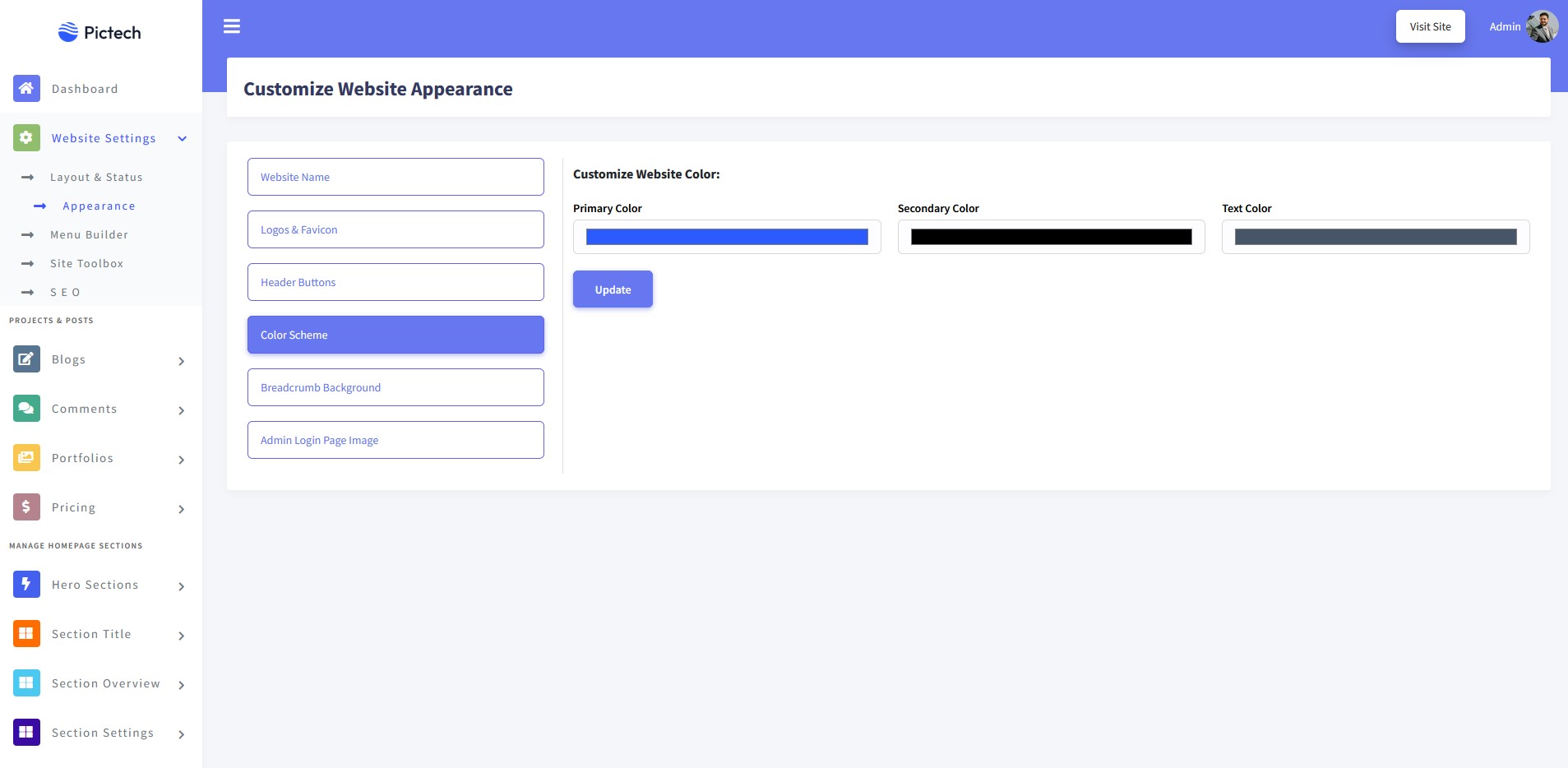
Brand Color Settings: Go to [Website Settings > Appearance]. From here, you can change the website colors. By default, we use primary, secondary, and text colors.
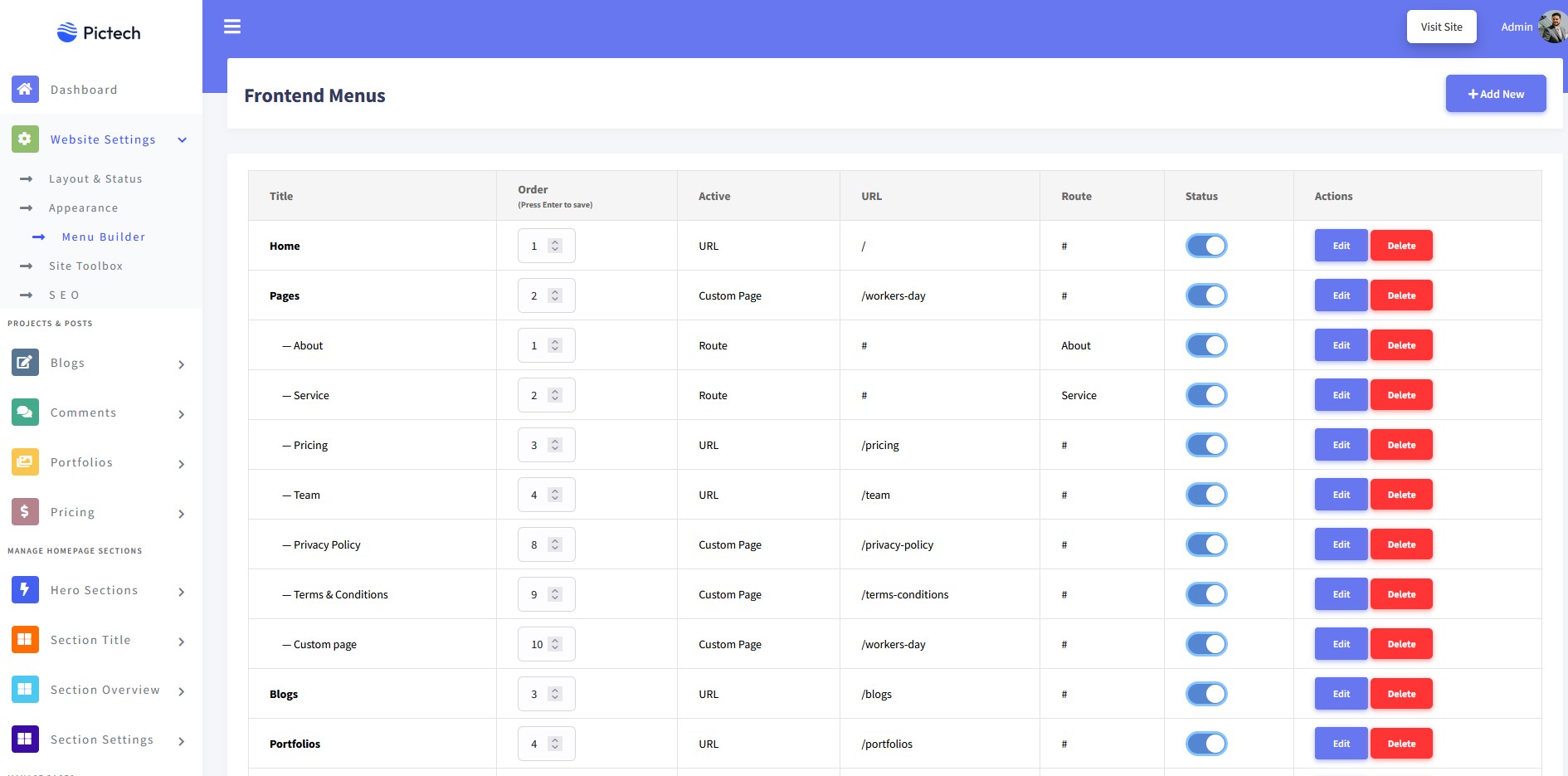
Menu Builder: Go to [Website Settings > Menu Builder]. Here you can fully customize the menu by adding or deleting items. You can add menus using page routes, custom links, or custom pages.
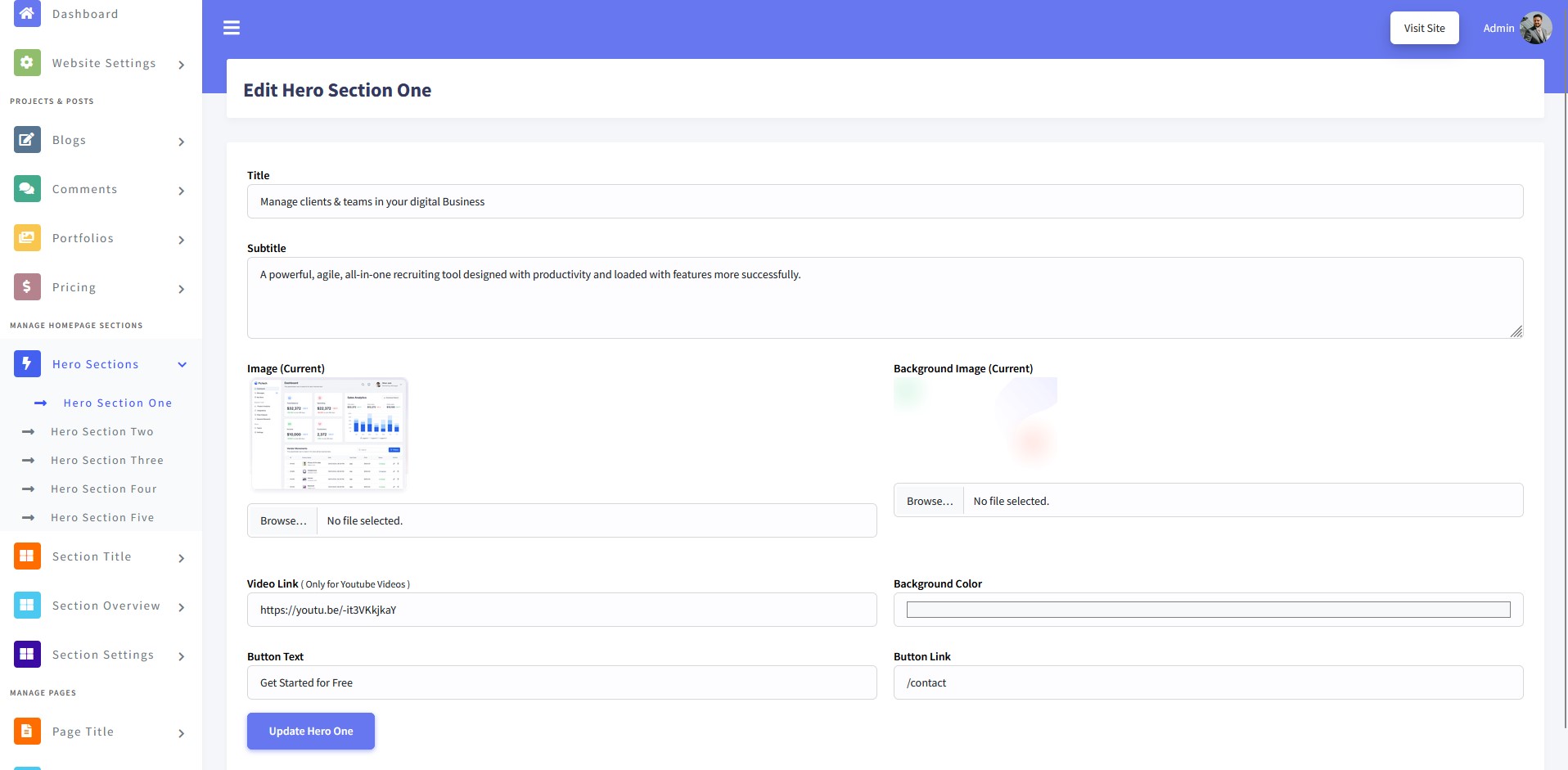
Hero Sections: Go to [Hero Sections > Hero Section]. You can update the hero section content based on the selected homepage. For example, if you choose Homepage One, only Hero Section One will be active, so you need to update the content of Hero Section One.
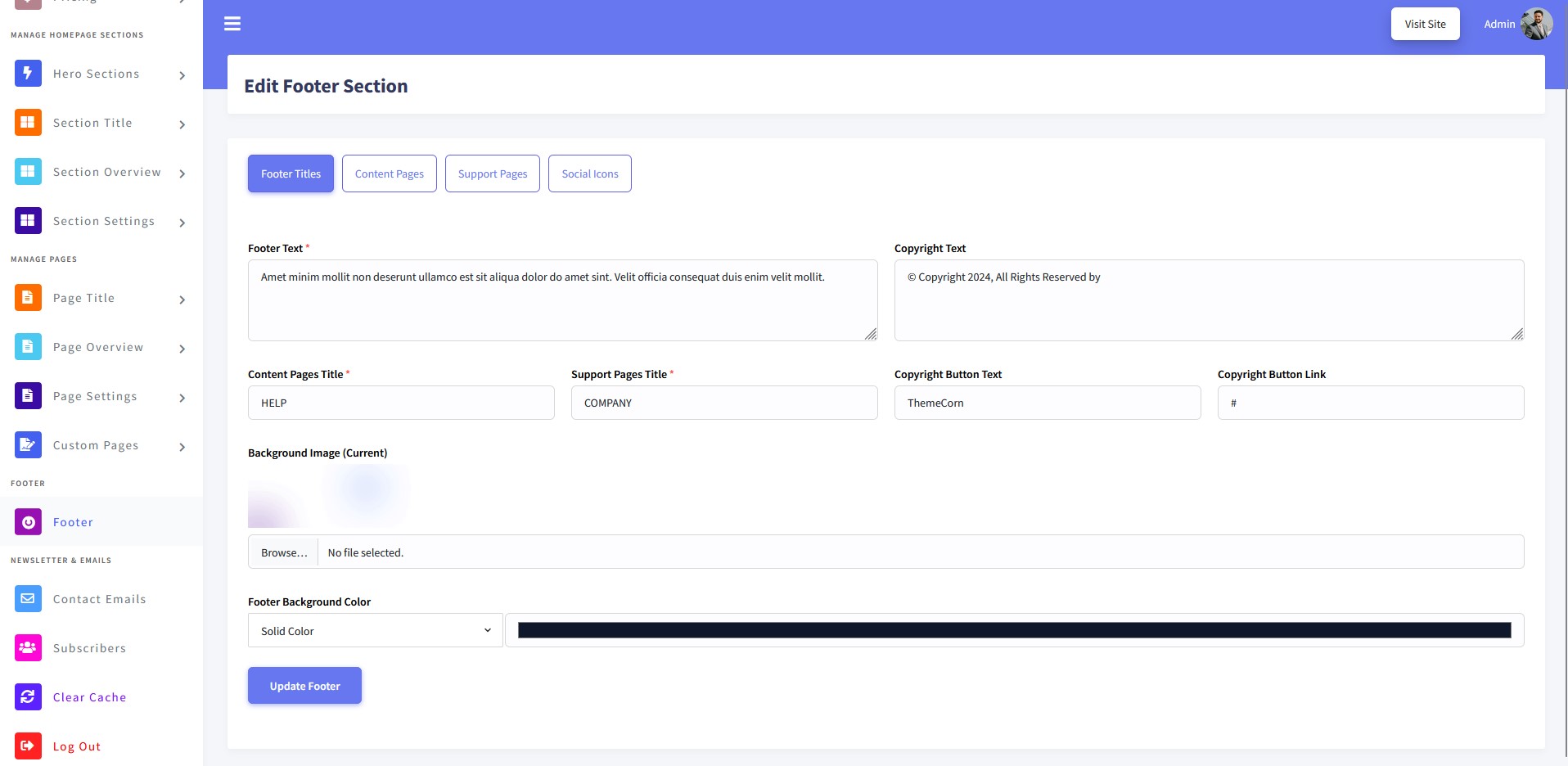
Footer Sections: Go to [Footer]. You can easily customize all footer content, including social links and page links. After making changes, click on "Update Footer."
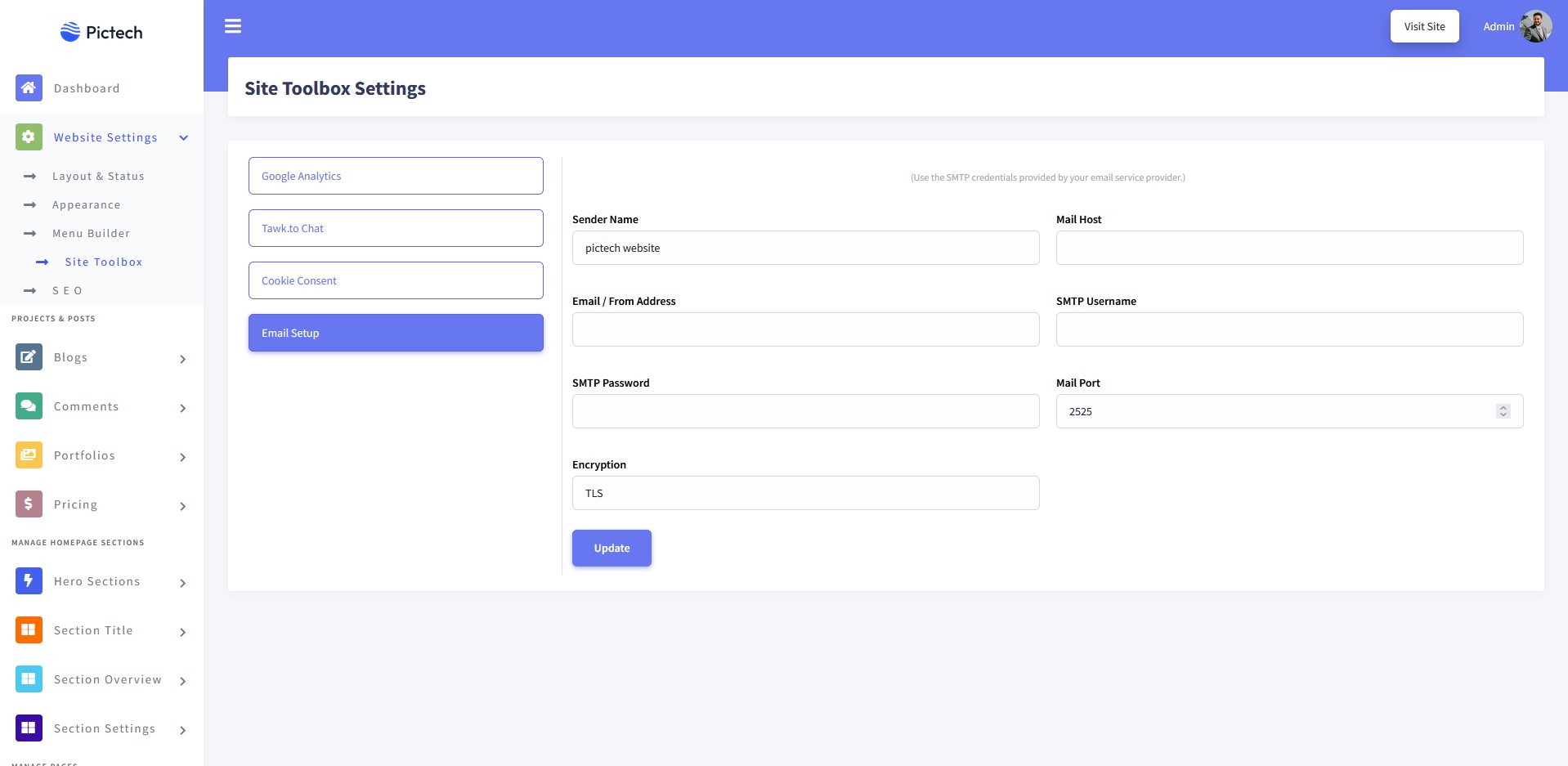
You need to set up the SMTP credentials provided by your email service provider to receive emails from the contact form, blog comments, and other notifications.
Go to [Website Settings > Site Toolbox > Email Setup] and enter your SMTP information.
Once again, thank you so much for purchasing Pictech Laravel Script. If you need any help using the file or need special customizing please feel free to contact us via our Email. Thank you.
Envato Profile: Enavto Profile
For Support: themecorn@gmail.com